
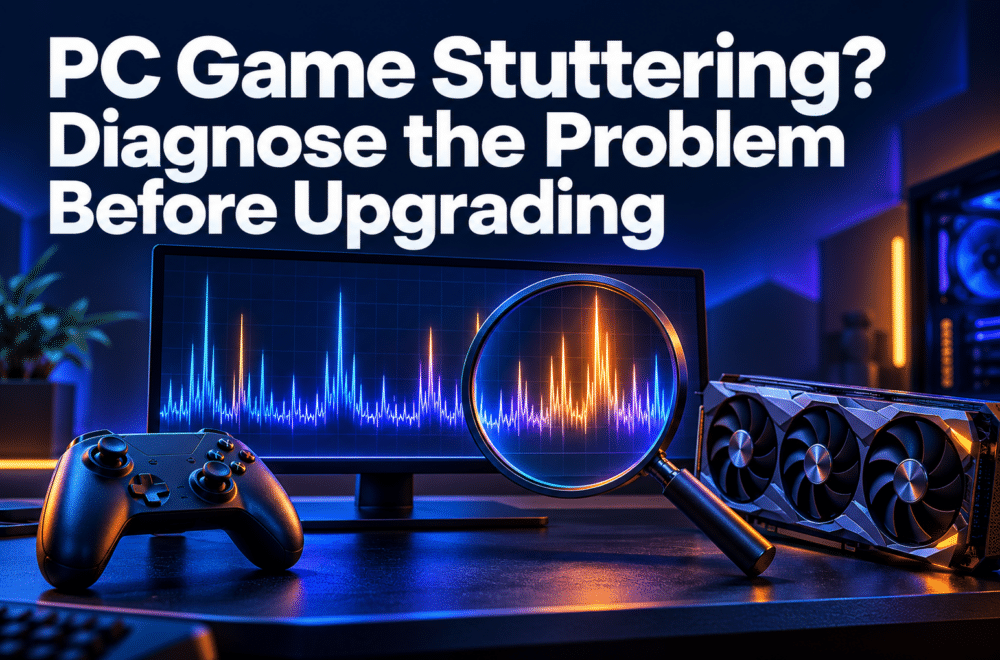
The frame-rate counter looks respectable. Your character moves smoothly through an empty corridor. Then you turn a corner, the picture briefly freezes, and the next movement jumps forward.
Your first thought might be that the graphics card needs replacing.
Perhaps it does. But PC game stuttering is a symptom, not a diagnosis. Before spending money, establish what happens, when it happens, and whether a controlled change affects it.
Treat the next gaming session as a small investigation. You need a repeatable scene, a few observations, and the discipline to change one thing at a time.
Case File: The Corner That Always Hitches
Consider a fictional player, Arjun. His game briefly stalls when he enters a busy courtyard. He lowers every graphics option, closes several applications, changes display mode, and installs a driver—all before testing again.
The courtyard feels better afterward.
Unfortunately, he cannot tell which change helped. He also cannot explain why the hitch returns during the next session.
A more useful investigation starts with a clear observation:
“The game pauses briefly when I enter this courtyard. It happens during camera movement, and I can reproduce it by loading this save and following the same route.”
That sentence establishes a test. “My PC feels slow” does not.
Before changing anything, Arjun records the resolution, graphics preset, display mode, game version, and whether recording software is running. He now has a starting point he can return to.
First Clue: What Do You Mean by “Stuttering”?
Several experiences get grouped under the word “lag.” Distinguishing them helps you choose where to investigate.
The picture moves unevenly.
Look at frame delivery. Average frames per second summarize performance over a period, while frame times describe how long individual frames take. An average can therefore hide intermittent slow frames.
For illustration, evenly delivered frames at 60 FPS take approximately 16.7 milliseconds each. A much longer individual frame can interrupt that rhythm even when the average remains relatively high.
NVIDIA’s FrameView overview describes tools for measuring both frame rates and frame times. Where compatible, a frame-time view can help you connect a visible hitch with a longer frame.
Your character snaps backward during an online match.
Investigate the connection as well as local performance. Epic’s Fortnite latency troubleshooting guide explains how congestion, routing, and server selection can affect ping. It also discusses packet loss and variation in latency.
Controls feel delayed while the picture remains relatively smooth.
Response time deserves separate attention. NVIDIA’s explanation of PC latency distinguishes system latency from frame rate and describes the components involved in the input-to-display process.
These categories can overlap. Use them to choose a starting point rather than to declare a cause immediately.
Run the Test Without Moving the Goalposts
Choose a short route, built-in benchmark, training area, or saved scene that reproduces the issue.
Keep the conditions as similar as possible: the same route, comparable camera movement, and the same settings. An unpredictable online match is usually harder to compare than a controlled local scene.
Then follow this sequence:
- Observe the original behavior. Note where the hitch occurs.
- Change one relevant variable.
- Repeat the same scene.
- Record what changed—and what did not.
- Restore the original setting if the test offers no useful improvement.
A simple record is enough:
| Test | Single change | Observation |
|---|---|---|
| Baseline | None | Hitch when entering courtyard |
| Test A | Close an unnecessary background application | No consistent difference |
| Test B | Reduce render resolution | Average FPS improves; courtyard hitch remains |
| Test C | Follow the game publisher’s relevant repair guidance | Retest the same route afterward |
These entries are illustrative, not measured results or guaranteed fixes.
In the fictional example, Test B is especially informative. Improving average FPS without removing the hitch suggests that the graphics adjustment did not resolve the entire problem. It does not, by itself, identify the remaining cause.
Follow the Pattern You Actually Find
The Problem Appears Across Several Games
Start with factors shared by those games.
Intel’s gaming performance troubleshooting guidance recommends checking system requirements, graphics drivers, background workloads, and temperatures. It also notes that a processor operating above its specifications may throttle and reduce performance.
Use official tools and manufacturer specifications when investigating. A utilization percentage or temperature reading needs context; a single number is not a complete hardware diagnosis.
If performance deteriorates during a longer session, record that timing. Compare an early test with a later one under similar conditions rather than assuming that heat is responsible.
Only One Game Behaves Badly
Check the publisher’s current support information and known issues. Record whether the problem began after a game update, driver change, or modification.
For Steam installations, Valve’s file verification instructions explain how to check that game files are installed correctly. The option is available through the game’s Properties → Installed Files menu. Verification can help investigate installation problems; it is not a universal cure for stuttering.
If you use modifications, consult their removal or troubleshooting instructions before testing without them. Preserve relevant saves and configuration information.
The Issue Changes With Display Mode
Investigate the options supported by your particular game and system.
Microsoft documents optimizations for windowed games for compatible DirectX 10 and DirectX 11 games in windowed and borderless modes. Its instructions include restarting the game after changing the setting.
Treat this as a targeted experiment. It does not establish that every game benefits from the same display configuration.
Close the Investigation With Evidence
Return to Arjun’s courtyard.
A useful outcome could be a setting change that repeatedly improves the scene. It could also be a reproducible problem report containing the game version, hardware details, exact location, and tests already completed.
Either result is more valuable than an afternoon of unrelated tweaks.
Before buying a component, ask:
- Does the problem occur in more than one game?
- Which controlled change improved it consistently?
- What evidence points toward the component I intend to replace?
- Is the replacement likely to address this specific limitation?
You do not need to diagnose every internal process yourself. When the cause remains unclear, a precise support report gives the game developer or hardware manufacturer something concrete to investigate.
The strongest reason to upgrade is a limitation you have identified. Start with the hitch you can reproduce, test carefully, and let the results guide the next decision.