
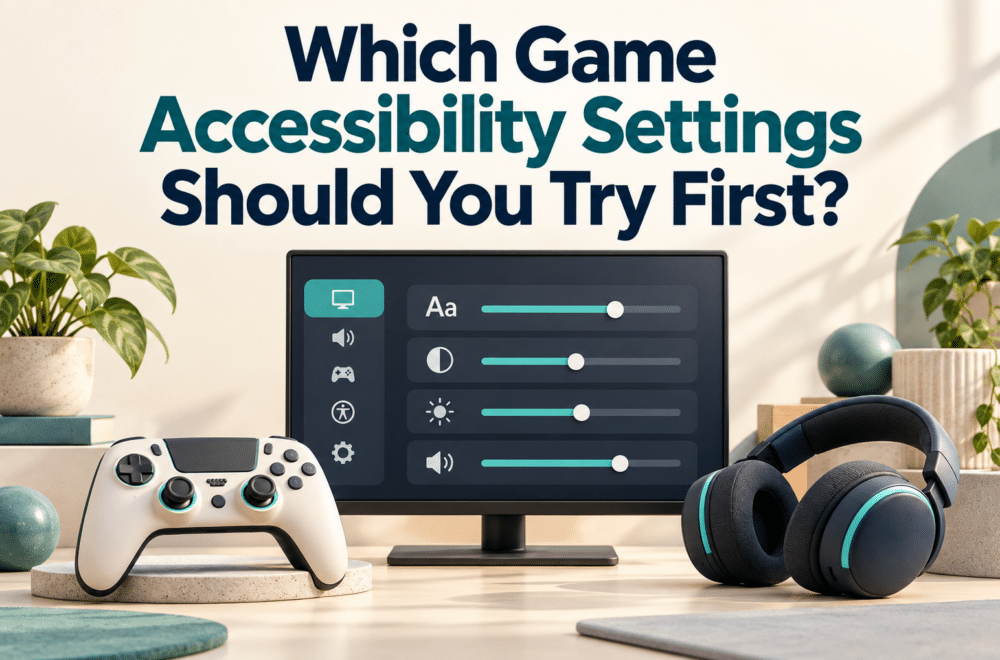
You miss a line of dialogue because the subtitle blends into the background. A required button combination feels awkward. An important warning appears only as a sound you cannot reliably hear.
These are different barriers, and they call for different settings.
Game accessibility settings are most useful when you connect them to a specific obstacle. Start by describing what prevents you from following or controlling the game. Then investigate the options designed to address that problem.
The directory below organizes the search around what happens during play. Feature names and availability vary by title, platform, and version.
“I Can See the Text, but I Cannot Read It Comfortably”
Begin with text size, subtitle size, background opacity, contrast, and interface scaling where available.
Try the settings from your normal playing position. A menu preview viewed close to the screen may not represent a television across the room.
Subtitles and captions also serve different purposes. Microsoft’s subtitle and caption accessibility guidance distinguishes dialogue text from captions that can communicate additional audio information, including relevant sound effects and speaker context.
That distinction matters if your difficulty extends beyond following spoken conversation.
A useful test: Replay a section containing more than one speaker, a bright background, and an important sound cue. Check whether the information remains understandable while you are also controlling the game.
If a larger subtitle size helps but covers something important, explore positioning or background options. The most comfortable combination may involve several related controls.
Avoid assuming that increasing the television’s overall sharpness will solve text designed at an unsuitable size.
“The Controls Work, but the Required Actions Are Difficult”
Look for remapping, toggle alternatives, hold duration, repeated-press options, and control sensitivity.
A button can be physically reachable while a particular action remains difficult. Repeatedly pressing it, holding it while moving another control, or combining it with a second input may create the actual barrier.
Write the action down precisely:
“I can press this button, but holding it while moving the camera is difficult.”
That description helps you evaluate whether remapping or a toggle option addresses the problem.
Microsoft’s accessibility feature-tag documentation describes categories such as input remapping and explains that tagged features must meet defined criteria. The details matter because partial remapping and full remapping are not necessarily equivalent.
Change the Action You Need Most
Start with one frequently used action. Test the new arrangement in a training area or another low-pressure section.
Check related actions afterward. Moving an input can solve one difficulty while making another combination less convenient.
If you use platform-level remapping, inspect on-screen prompts too. They may not always describe your customized arrangement in the way you expect.
PlayStation’s accessibility overview describes console options and game-store accessibility information. These resources can help identify available controls, but individual games still require their own checks.
“I Keep Missing Information That Arrives Through Sound or Color”
Investigate whether the game provides another way to communicate the same information.
For audio, look for captions, visual indicators, separate volume controls, or directional cues. For color, check whether symbols, labels, outlines, or patterns help distinguish important elements.
Changing a color filter may help in some situations. It does not establish that every color-dependent task becomes understandable.
Try the actual task: identify teammates, follow an objective marker, read a map, or recognize a warning. Evaluate whether the relevant distinction is clear without relying on the cue that caused difficulty.
Microsoft’s guidance on making games accessible discusses features such as remappable controls and captioning as ways to support different player needs.
A useful observation is specific: “I can now identify the objective marker against this background.” That tells you more than saying the screen looks better.
“I Found the Menu, but I Am Not Sure What Changed”
Use a small experiment rather than enabling everything at once.
| Barrier | Setting to investigate | Test |
|---|---|---|
| Dialogue is difficult to read | Subtitle size and background | A conversation during active play |
| Holding an input is difficult | Hold-to-toggle option | The repeated action causing trouble |
| A warning is easy to miss | Captions or visual cues | A section containing that warning |
| Menu navigation is difficult | Narration or navigation options | Opening and changing a setting |
| Important items blend together | Contrast, outlines, symbols | The relevant gameplay task |
These are investigation routes, not promises that each feature exists or will meet every need.
Record the original setting before changing it. Keep the scene similar, adjust one option, and note whether the barrier became smaller.
Some settings work together, so you may eventually need a combination. Testing individually first makes that combination easier to understand.
Before Buying, Look Beyond the Feature Name
Accessibility information is useful before downloading a game as well as afterward.
Read store tags, official accessibility pages, and detailed descriptions of the features you require. Microsoft explains that players can filter supported catalogs using accessibility tags. PlayStation also displays accessibility information for games that support its tagging system.
Treat a tag as a starting point for a more specific question.
Does captioning cover the sounds you need? Does remapping include the relevant actions? Can the necessary option be enabled before an opening sequence?
Where an official demo or trial is available, test those requirements directly. Check purchase and refund terms before assuming you can evaluate a game without commitment.
You do not need to defend using a feature that makes play more accessible or comfortable. Nor does a setting’s presence mean the game will suit everyone.
Keep a short record of the options that worked for you. When you begin another title, you will have a practical starting list: readable dialogue, manageable inputs, and information delivered in a form you can use.